Visualize
The SDK supports two visualization workflows:
Post-hoc inspection in Foxglove Studio. Open any recorded
.mcapfile after the session finishes. No build-time configuration is required.Live streaming to a ReRun viewer during recording. Plots and camera feeds update in real time as the operator teleoperates. Requires a build-time flag and a small
observerssection in your config.
Pick the one that matches what you need. Most operators use Foxglove for episode review and add ReRun when they want to watch joint trajectories or camera feeds in real time during teleoperation.
TrossenMCAP episodes are written in the MCAP container format with protobuf-encoded messages, so they open directly in Foxglove Studio. No conversion is required.
What You Need
At least one
.mcapepisode recorded with the SDK. If you have not recorded anything yet, follow Record.Foxglove Studio, either the desktop app or the web viewer at https://app.foxglove.dev.
Installing Foxglove Studio
Desktop (Recommended)
Download the installer for your platform from https://foxglove.dev/download and install it with the usual package manager:
# Debian / Ubuntu
sudo apt-get install -y ./foxglove-studio-*.deb
The desktop app opens local .mcap files directly and does not upload any data.
Web (No Install)
Open https://app.foxglove.dev in a browser.
Drag-and-drop your .mcap file onto the window to open it.
The file is parsed in the browser and is not uploaded to Foxglove’s servers.
Opening an Episode
Launch Foxglove Studio, choose Open local file, and select:
~/.trossen_sdk/solo_dataset/episode_000000.mcap
Launch Foxglove Studio, choose Open local file, and select:
~/.trossen_sdk/stationary_dataset/episode_000000.mcap
Launch Foxglove Studio, choose Open local file, and select:
~/.trossen_sdk/mobile_dataset/episode_000000.mcap
Foxglove parses the MCAP index and exposes every channel in the left-hand data source panel.
Ready-Made Layout
A Foxglove layout matching each default robot config is included with these docs. Download the one that matches your robot, then in Foxglove Studio choose Layouts → Import from file and select the JSON.
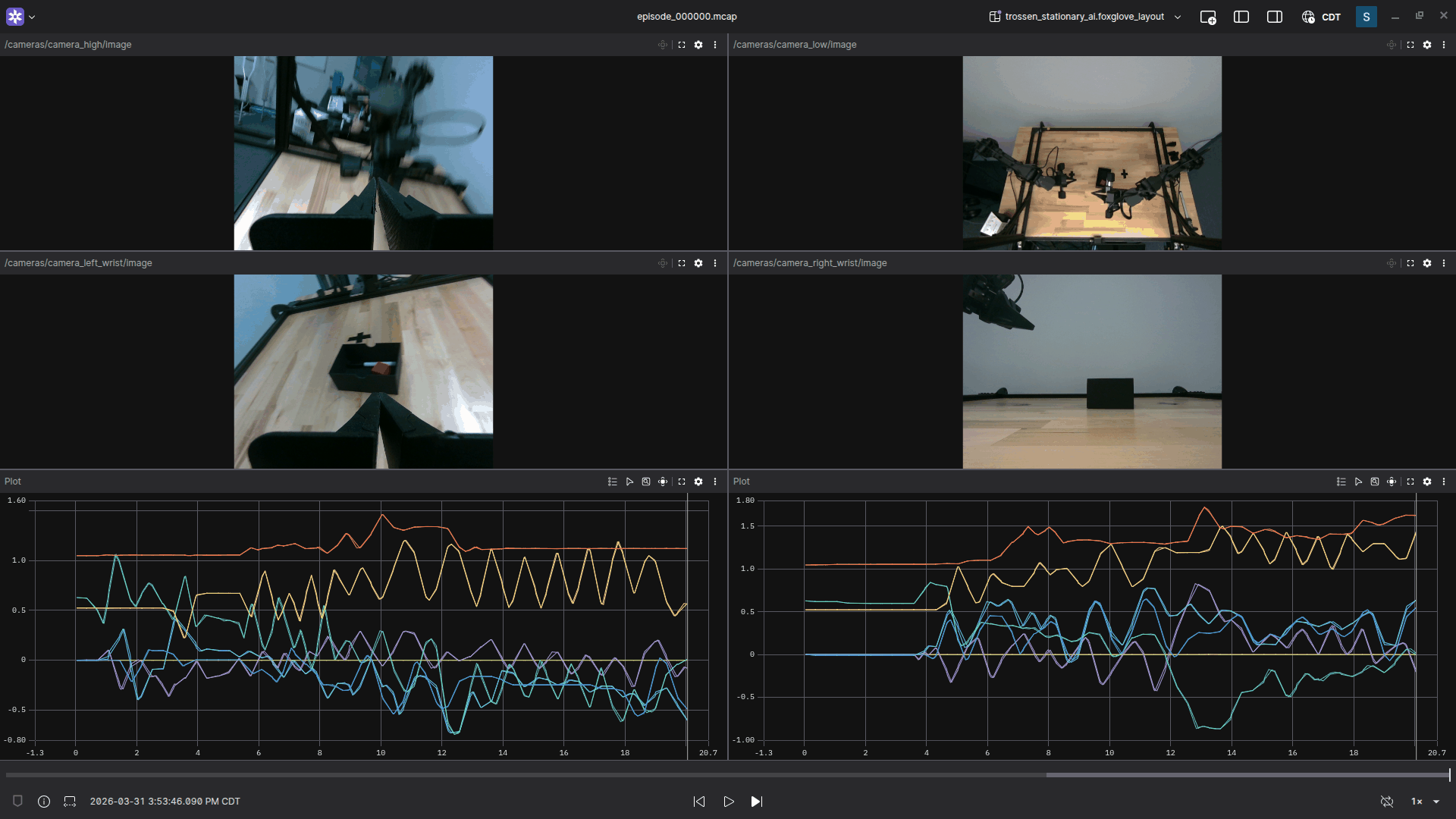
Example: the stationary layout rendering a recorded episode — four camera feeds on top, leader/follower joint plots on the bottom.
Two Image panels (camera_main, camera_wrist) and two Plot panels showing leader vs. follower joint positions and follower joint efforts.
Four Image panels in a 2x2 grid (camera_high, camera_low, camera_left_wrist, camera_right_wrist) and two Plot panels, one per arm pair.
Three Image panels (camera_high + both wrist cameras), a joint-position plot across both arm pairs, and an odometry plot for the slate_base stream.
If you renamed any stream_id or camera id in your config, open the panels in Foxglove after import and update the message paths.
Channel Reference
The SDK writes the following channels per episode.
Names include the stream_id from your producers config.
Channel |
Schema |
Suggested Foxglove Panel |
|---|---|---|
|
|
Plot (positions, velocities), State Transitions |
|
|
Image |
|
|
Plot ( |
Streaming with ReRun
The SDK ships an optional RerunObserver that forwards records to a ReRun viewer as they are produced.
Unlike Foxglove, which reads completed .mcap files after a session, ReRun renders plots and camera feeds in real time while teleoperation is running.
The observer is independent of on-disk capture — every record continues to land in the .mcap exactly as before.
Prerequisites
ReRun support is gated behind a build flag and a runtime viewer.
Compile with ReRun enabled. Configure the build with
-DTROSSEN_ENABLE_RERUN_OBSERVER=ONso the observer is registered:cmake -B build -DTROSSEN_ENABLE_RERUN_OBSERVER=ON cmake --build build -j$(nproc)
With the flag off (default), any
"type": "rerun"entry in your config fails to load.Install the ReRun viewer. The quickest option is the snap, which bundles the viewer with no Python environment to manage:
sudo snap install rerun
The viewer is also published as a Python package. Installing it as an isolated tool with uv puts
rerunon yourPATHwithout any virtualenv to manage (append==<version>to either command to pin a specific release):uv tool install rerun-sdk # isolated, no virtualenv needed # or, inside an activated virtualenv: pip install rerun-sdk
See the ReRun install guide for other options.
Note
Keep the viewer reasonably current — ReRun 0.32 or newer is recommended so it matches the
rerun-cppSDK version the observer is built against (RERUN_SDK_VERSION). Slightly older viewers usually still render but may log harmless schema-version warnings; very old viewers fail to render and report errors such astransport errorordropping LogMsg ... Missing row_id column. If the viewer stays blank, update it first.
Launch the Viewer
Start the viewer in a separate terminal before launching the SDK demo:
rerun
The viewer window opens and listens for gRPC connections on 127.0.0.1:9876 by default.
Leave the default rerun_url in your config; the SDK connects to it over gRPC at session start.
The viewer survives across SDK restarts and you can reconnect to it at any time.
Letting the SDK Launch the Viewer
Instead of starting rerun yourself, set "spawn": true on the observer and the SDK launches a local viewer for you at session start:
"observers": [
  { "type": "rerun", "id": "live_viewer", "spawn": true, "subscriptions": [ ... ] }
]
This requires the rerun binary on your PATH (any of the installs under Prerequisites).
When spawn is true the rerun_url key is ignored.
If the installed viewer’s version differs from the SDK’s, ReRun prints a one-time compatibility warning at startup but still connects and renders — see the version note above.
Observer Config
A minimal observer block subscribes to one or more record streams:
"observers": [
  {
    "type": "rerun",
    "id":   "live_viewer",
    "subscriptions": [
      { "record_id": "leader",       "throttle_hz": 30.0 },
      { "record_id": "follower",     "throttle_hz": 30.0 },
      { "record_id": "camera_main",  "throttle_hz": 15.0 }
    ]
  }
]
record_id matches the producer stream_id (for arm and odometry streams) or the camera id (for camera streams).
throttle_hz caps the dispatch rate per subscription — set it well below the producer poll_rate_hz to keep the viewer responsive on dense camera streams.
The example configs that ship with the SDK already include an observers block wired up to the cameras and arms for each robot.
Open examples/trossen_solo_ai/config.json (or the stationary / mobile variant) for a complete reference.
For the full set of subscription options — including the per-subscription fields filter for trimming joint-state channels — see Configuration.
Across Episodes
Each subscribed entity tree is cleared at the start of every new episode, so the viewer does not blend the previous episode’s plots into the current one. Per-record on-disk capture (MCAP, LeRobot) is unaffected — this only resets what the live viewer renders.
The ReRun timeline uses wall-clock timestamps, so a multi-episode session scrubs correctly across boundaries and timestamps from different operator sessions are directly comparable.
What’s Next
Once you have verified an episode visually: