GoPro Configuration
The TRumi pipeline expects the GoPro to be configured with a specific set of camera settings. This page walks through installing the required firmware, applying the settings, and (for bimanual collection) synchronizing timecode across two cameras.
Install GoPro Labs Firmware
TRumi uses GoPro Labs firmware, which lets you apply any camera setting by scanning a QR code.
Install GoPro Labs on each camera by following the official GoPro Labs installation instructions, which walk through the firmware download and step-by-step setup.
Apply the Camera Settings
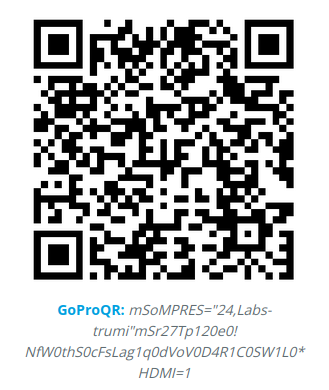
Scan the following QR code with your GoPro to apply all required TRumi camera settings:
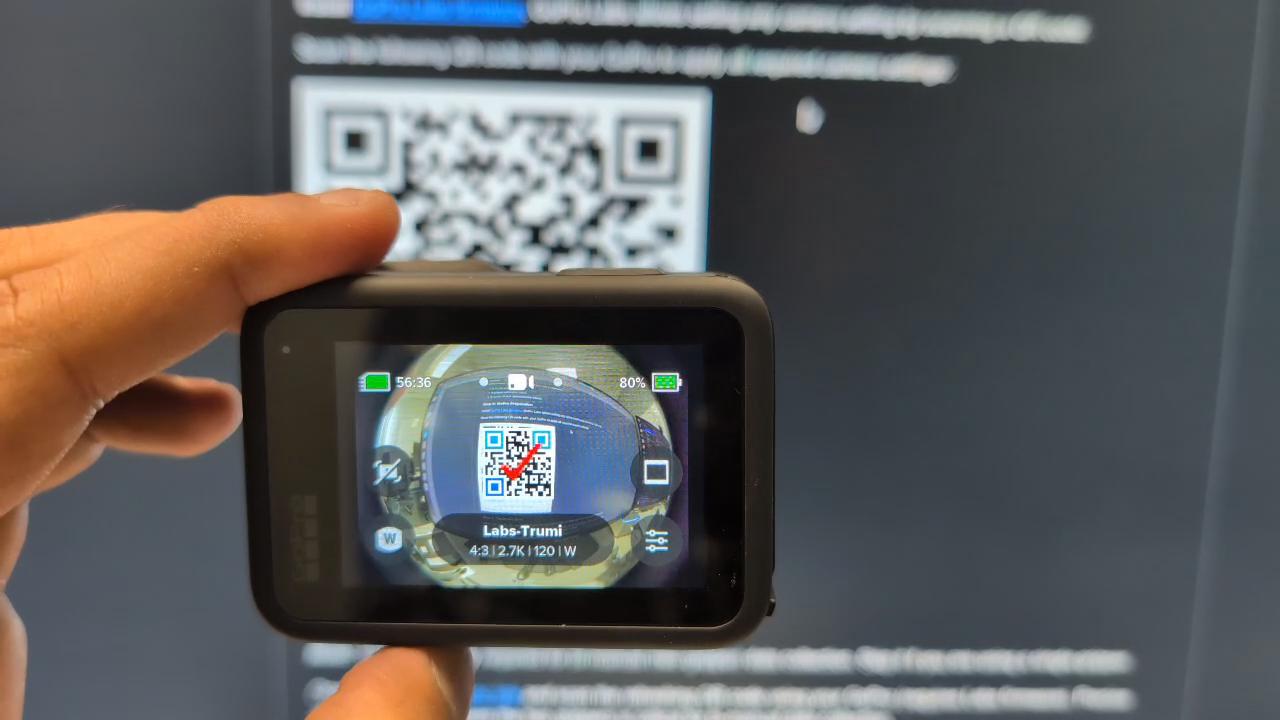
Once the settings are saved, the GoPro screen shows “Labs-Trumi” with the applied configuration:
Note
When using the Ultra Wide Lens Mod, disable automatic lens detection and manually set the lens to Standard (Preferences → Lens Mod → Standard). This prevents the GoPro from applying additional distortion correction, ensuring raw undistorted frames are saved for the pipeline.
What the QR Code Configures
The QR code applies a complete GoPro Labs preset named Labs-Trumi. The settings below determine the format of every video you record, so it is worth knowing them up front — your downstream pipeline needs to expect the same resolution, aspect ratio, frame rate, and lens.
Setting |
Value |
|---|---|
Video mode |
Standard |
Resolution |
2.7K (2704 × 2028) |
Aspect ratio |
4:3 |
Frame rate |
120 fps |
Lens (field of view) |
Wide (with the Ultra Wide Lens Mod) |
Stabilization (HyperSmooth) |
Off |
Color profile |
Flat (Protune enabled) |
Recording at 2.7K 4:3, 120 fps with the Wide lens and stabilization turned off gives the SLAM pipeline a wide field of view over a fixed, calibrated fisheye geometry — electronic stabilization is disabled so it cannot crop or warp the frames between shots. The flat color profile preserves detail across highlights and shadows.
Note
The preset also applies a number of lower-level Protune and camera options (white balance, ISO limits, sharpness, audio, HDMI, etc.). These are tuned for the pipeline and can generally be left as applied.
Timecode Sync (Bimanual Only)
Note
This step is required only for bimanual (two-gripper) data collection. Skip it if you are using a single gripper.
Precise synchronization between the two grippers is critical for bimanual data collection. Serve the timecode sync page locally, open the printed URL in a browser, and scan the refreshing QR code with each GoPro (requires Labs firmware):
uv run python scripts/serve_timecode_sync.py
Tip
Adjust your distance to the QR code if you have trouble scanning it.
With the GoPro configured, continue to Software Setup to install the dataset generation pipeline.